If you want to know how to block camera on iPhone because you're worried about spyware, accidental triggers, or apps you no longer trust, this guide walks through every method that actually works. Some take 30 seconds in Settings. Others require a small piece of hardware. None of them require an app subscription or a tracking profile.
This article is written for executives traveling internationally, journalists protecting sources, healthcare workers handling patient data, and anyone else who treats their iPhone camera as a potential surveillance tool rather than a feature. The steps below cover iOS 17, iOS 18, and iOS 26. We'll cover the software path first, explain where it falls short, and finish with the only method that cannot be bypassed by malware: a physical cover.
Quick answer: to fully block your iPhone camera, go to Settings > Screen Time > Content & Privacy Restrictions > Allowed Apps & Features and toggle Camera off. Then audit per-app camera permissions under Settings > Privacy & Security > Camera. For guaranteed protection against spyware that bypasses these settings, install a physical camera cover such as a Spy-Fy iPhone privacy case.
Why block the iPhone camera in the first place
There are three real reasons professionals disable or block the iPhone camera. First, accidental triggers in sensitive environments, like a courtroom, hospital, or board meeting, where pocket-dialing a recording is a liability event. Second, malicious app access, including stalkerware, jailbroken-device exploits, and zero-click spyware like the Pegasus family that has been documented targeting journalists and activists. Third, basic operational security: an executive in a hotel room, a lawyer reviewing privileged documents, a doctor on a video call where patient information is visible behind them.
The green dot in the iOS status bar tells you when an app is using the camera. That's useful, but it's a passive indicator, not a block. If you want to stop access entirely, you need to remove permission, restrict the camera at the system level, or physically cover the lens. The strongest defense uses all three layers.
Method 1: Disable the camera with Screen Time
Screen Time was originally built as a parental-control feature, but it doubles as the cleanest system-level camera kill switch in iOS. When you disable Camera here, the Camera app disappears from the Home Screen, the Lock Screen camera shortcut stops working, FaceTime video is blocked, and third-party apps lose camera access entirely.
- Open Settings and tap Screen Time.
- If Screen Time isn't on, tap Turn On Screen Time and follow the setup.
- Tap Content & Privacy Restrictions and toggle it on.
- Tap Allowed Apps & Features (in older iOS, just Allowed Apps).
- Toggle Camera off.
The Camera app icon will vanish from your Home Screen. Anything that depends on the camera, FaceTime video, QR code scanning in Safari, Snapchat, Zoom video, will stop working until you reverse the setting. Face ID is unaffected because it uses a separate TrueDepth sensor system, not the standard camera.
Lock the setting with a Screen Time passcode
Without a passcode, anyone who picks up your phone, including someone who installed spyware via physical access, can flip the camera back on in 15 seconds. Set a Screen Time passcode under Settings > Screen Time > Lock Screen Time Settings. Use a code that's different from your device passcode. This is non-negotiable if you're blocking the camera as a security measure rather than a productivity one.
Method 2: Audit per-app camera permissions
If you don't want to disable the camera entirely, the next-best move is revoking access from every app that doesn't need it. Most users have granted camera permission to dozens of apps over the years, social platforms, banking apps, retail apps, productivity tools, and forgotten about it. Each one is an attack surface.
- Open Settings and tap Privacy & Security.
- Tap Camera.
- Review the list. Toggle off any app that doesn't strictly need camera access.
Be aggressive here. A retail app does not need your camera. A delivery service does not need your camera. A banking app might need it for check deposits, but only at the moment you use that feature, and you can re-enable it then. As documented spyware cases on iPhone show, malicious apps that have been granted permission once retain that access silently in the background.
Method 3: Remove the Lock Screen camera shortcut
The Lock Screen camera shortcut is convenient and a privacy hole. Anyone who picks up your locked phone can take photos and short videos without unlocking it, and pocket triggers happen constantly. In iOS 18 and iOS 26, you can customize or remove this shortcut directly:
- Long-press the Lock Screen until the customization view appears.
- Tap Customize > Lock Screen.
- Tap the camera button in the bottom-right corner.
- Replace it with a different shortcut or remove it entirely.
If you're running an older iOS version that doesn't support shortcut customization, the Screen Time method above also disables this Lock Screen access as a side effect.
Method 4: Use Focus modes to block camera-dependent notifications
Focus modes don't block the camera itself, but they let you create profiles, Work, Travel, Confidential, that silence camera-dependent apps and hide them from the Home Screen. Combined with Screen Time, you can build a one-tap "sensitive meeting" mode that locks down camera access plus the apps most likely to request it.
Set this up under Settings > Focus, create a custom focus, and use the Home Screen page selection and app filtering to hide camera-using apps. It's a workflow tool, not a security tool, but it reduces the chance of an accidental camera trigger during a confidential conversation.
Why software alone isn't enough
Here's the honest part: every method above relies on iOS enforcing your settings correctly. Against ordinary apps and accidental triggers, that works fine. Against sophisticated spyware, it doesn't.
Zero-click exploits, the kind that infected journalists' phones in the Pegasus cases documented by Citizen Lab and Amnesty International, can bypass standard permission models. Jailbroken devices ignore most privacy toggles. Malicious configuration profiles installed via phishing can override Screen Time. If you're a high-value target, executive at a company involved in M&A, journalist covering authoritarian regimes, lawyer with high-profile clients, you should assume software protections are necessary but not sufficient.
The 7 indicators outlined in our guide on how to tell if someone is hacking your iPhone include unexpected camera indicator activation, rapid battery drain, and unfamiliar configuration profiles. If you're seeing any of these, software toggles won't save you.
Method 5: Physical camera covers, the only guaranteed method
A camera that's physically blocked cannot be used by any software, malicious or otherwise. This is why Mark Zuckerberg famously taped over his MacBook camera and microphone in the photo that went viral in 2016. It's why FBI Director James Comey publicly advised the same. The lens is covered, full stop.
You have three options for physically covering an iPhone camera, and they are not equally good.
Tape: don't do this
Black tape over the front camera does block the lens, but it leaves adhesive residue on the glass, can interfere with the proximity sensor and Face ID alignment, and looks unprofessional. Tape over the rear camera array on modern iPhones is even worse because the cluster is raised and tape lifts at the corners within hours. It's a temporary fix at best.
Removable stickers
Camera-blocking stickers are cheap and slightly better than tape, but the adhesive degrades after a few open-close cycles, they don't fit the camera cutouts on Pro Max models cleanly, and they look like what they are: stickers on a $1,200 phone.
Sliding camera covers built into a case
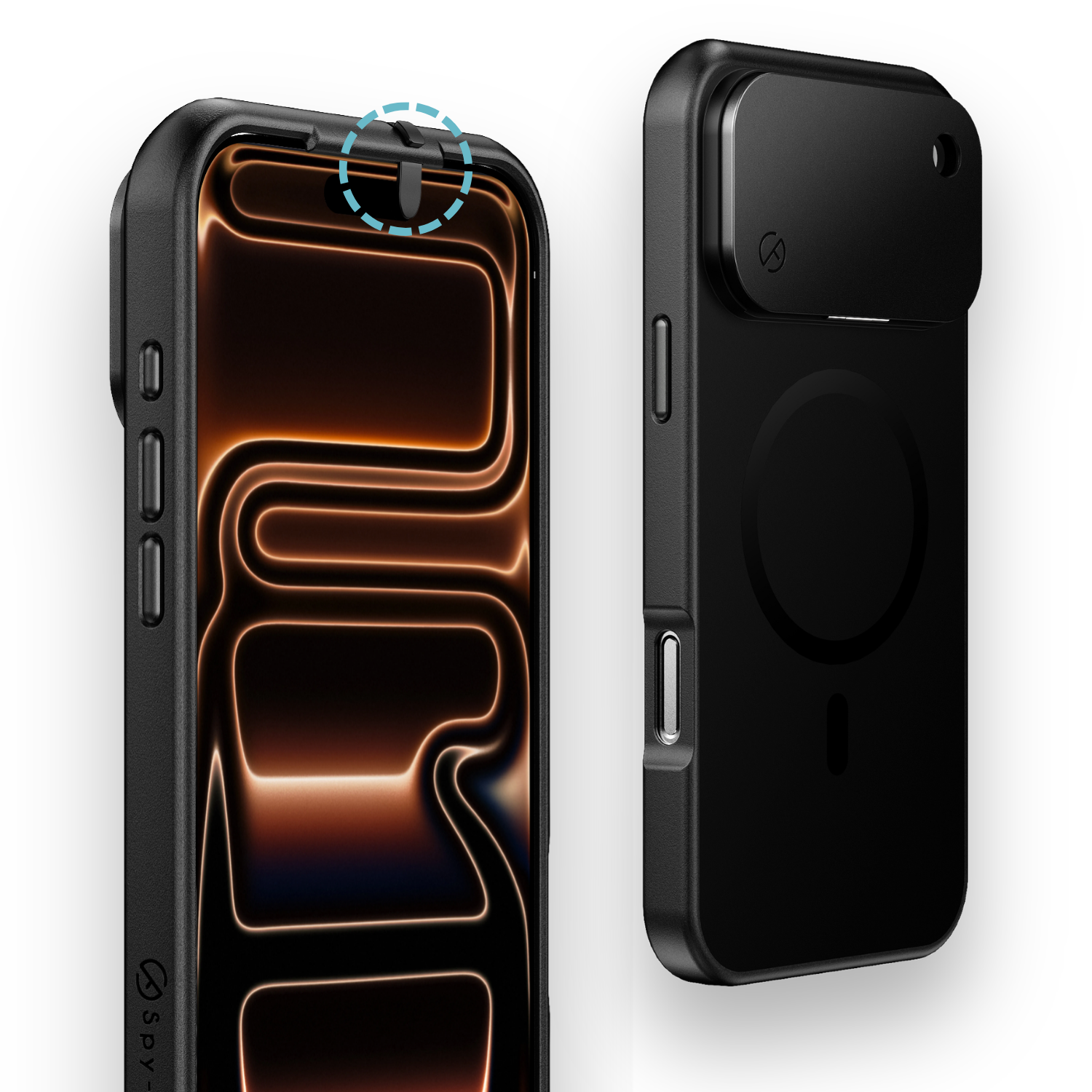
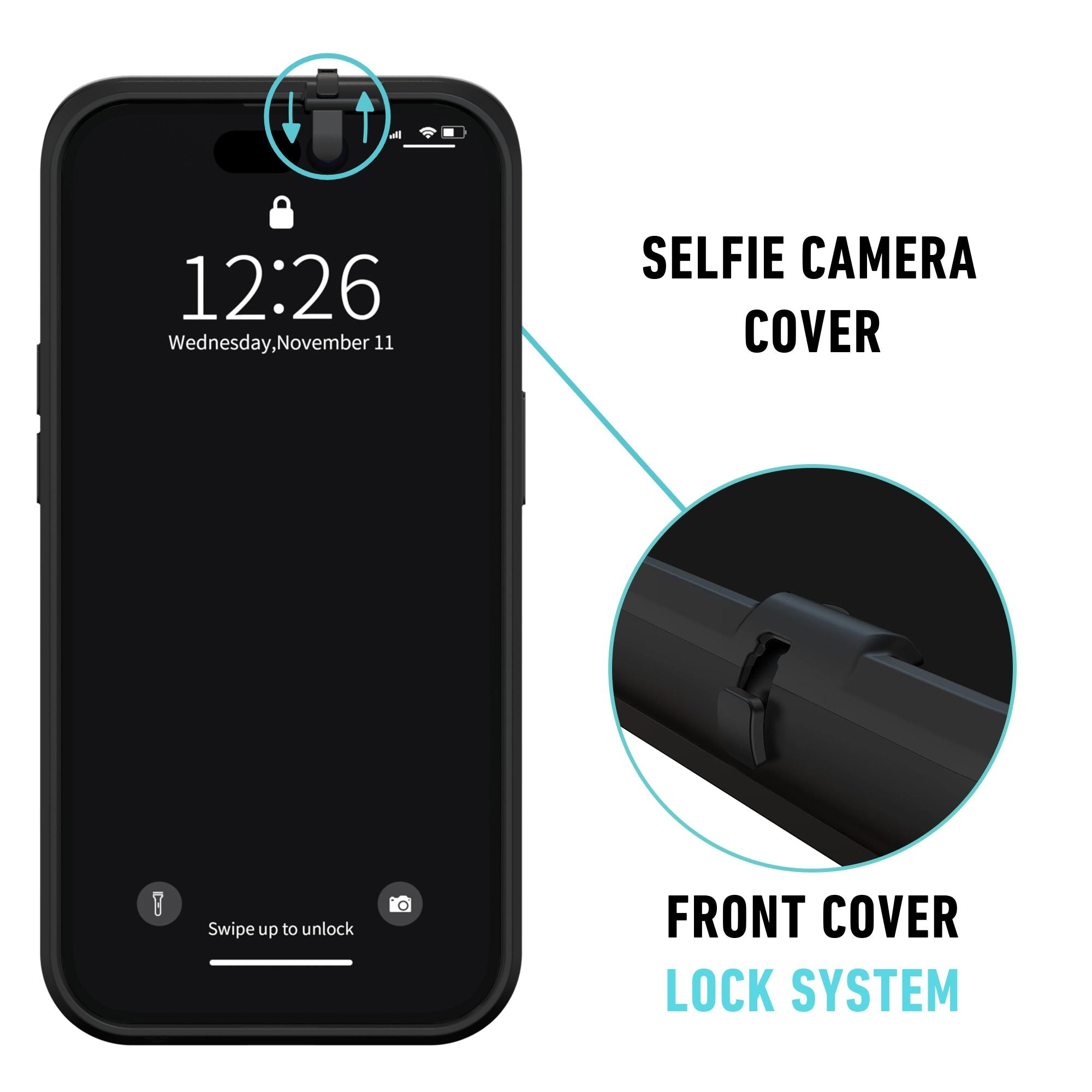
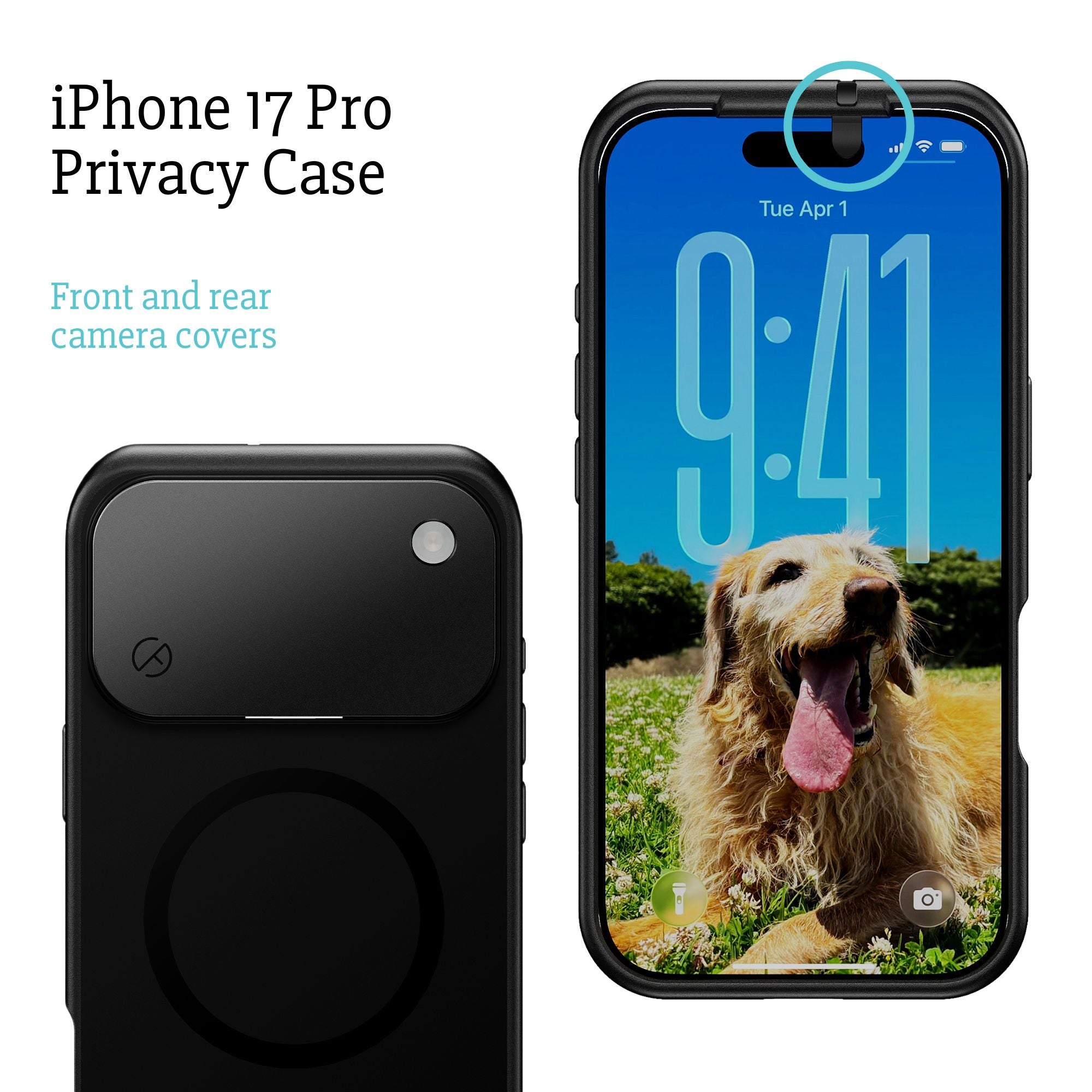
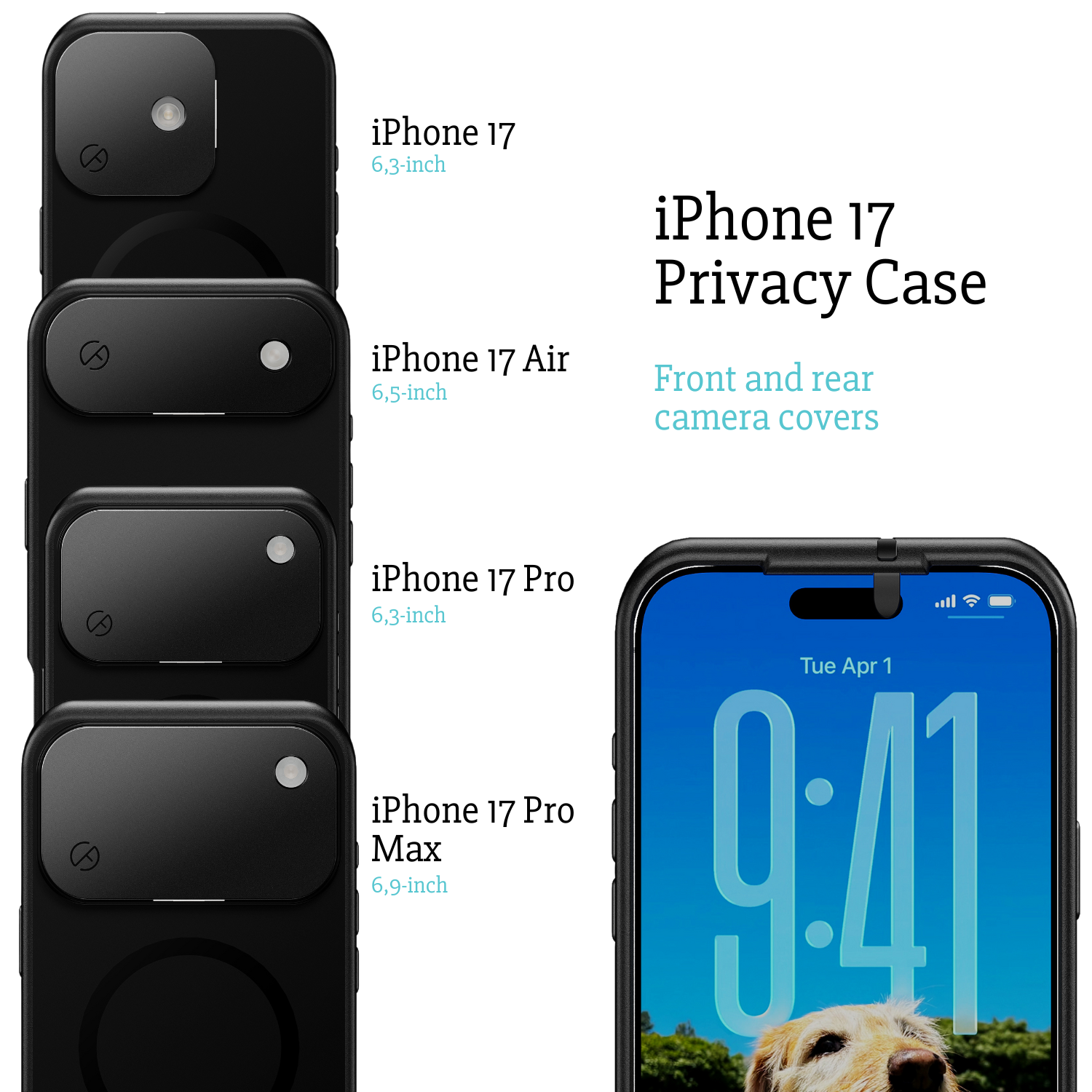
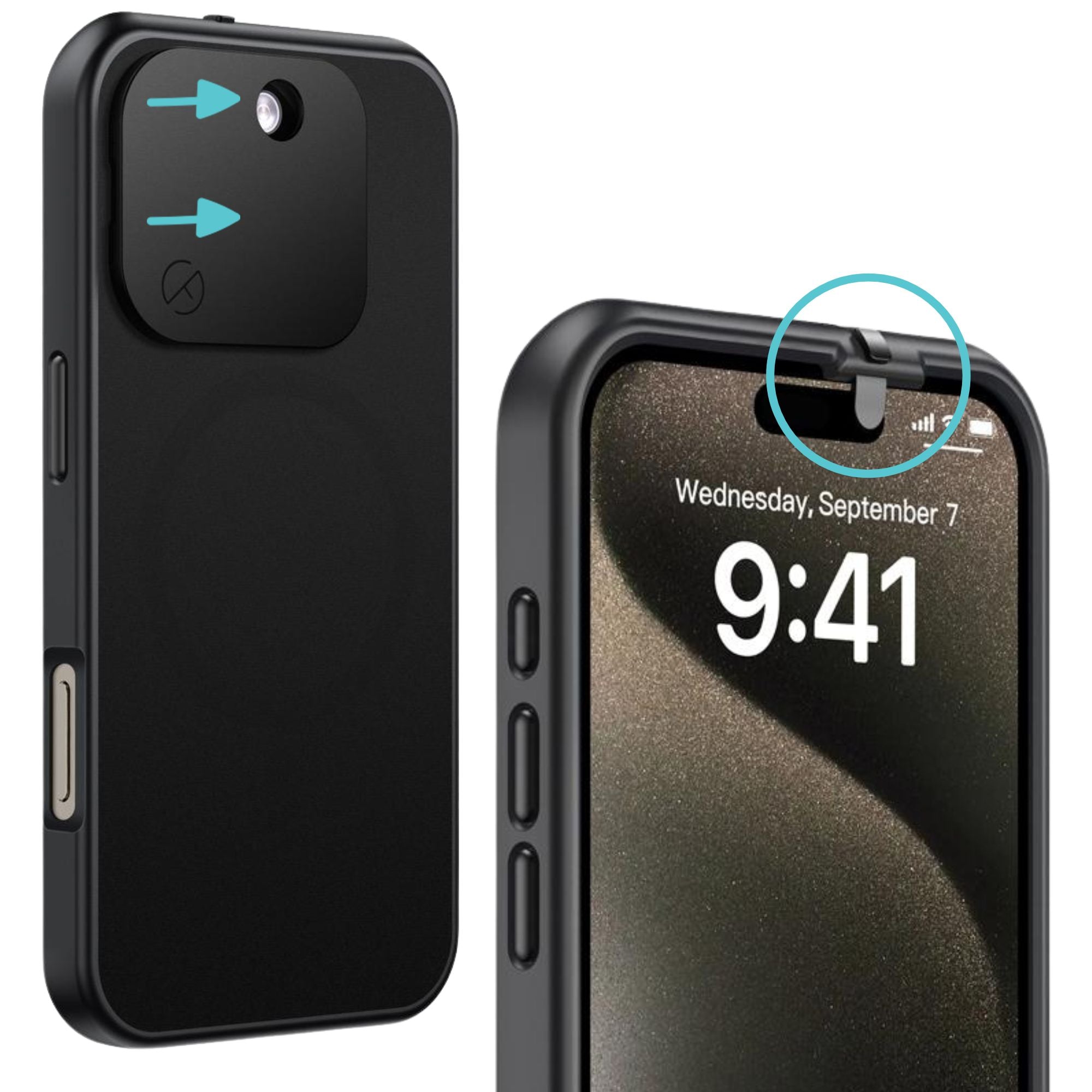
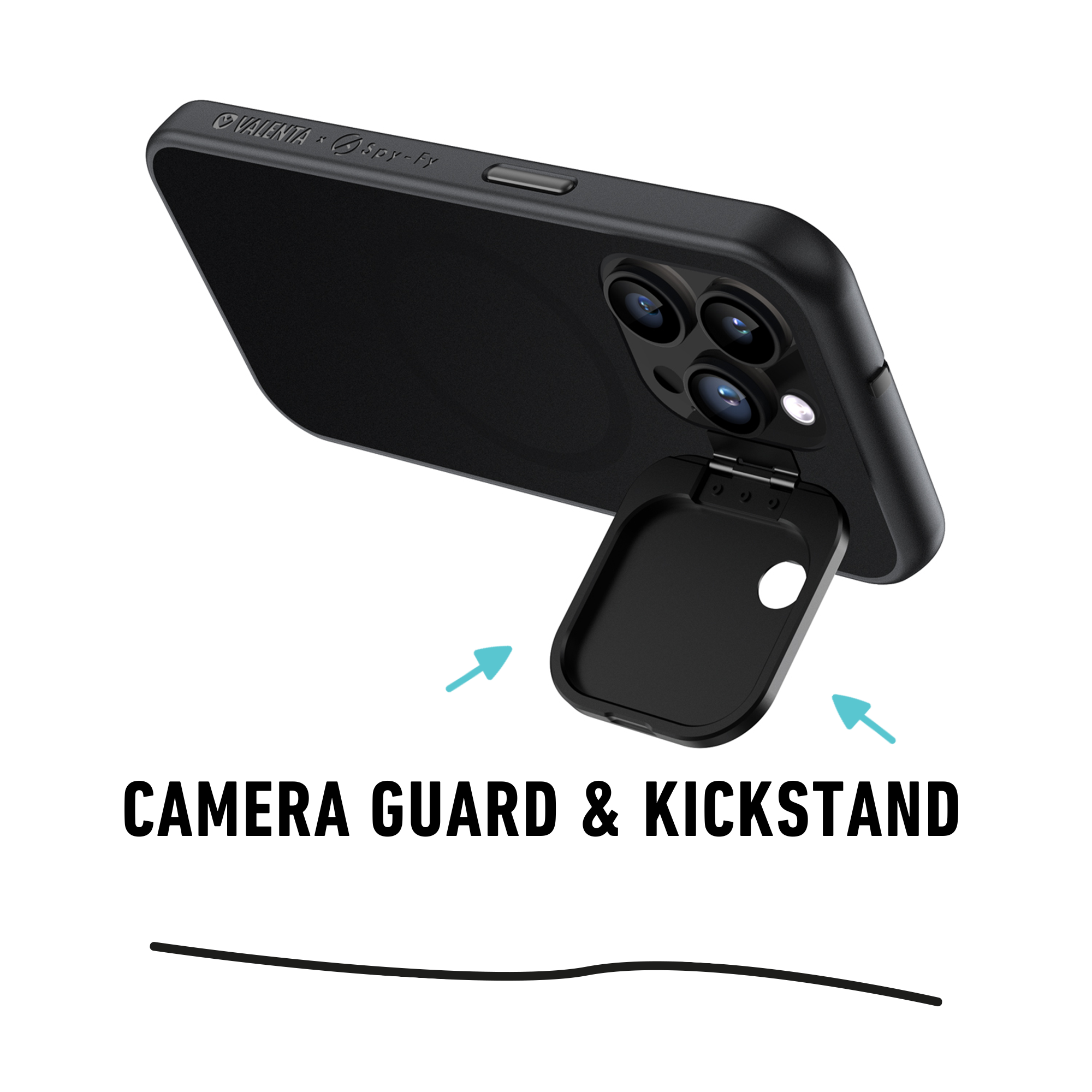
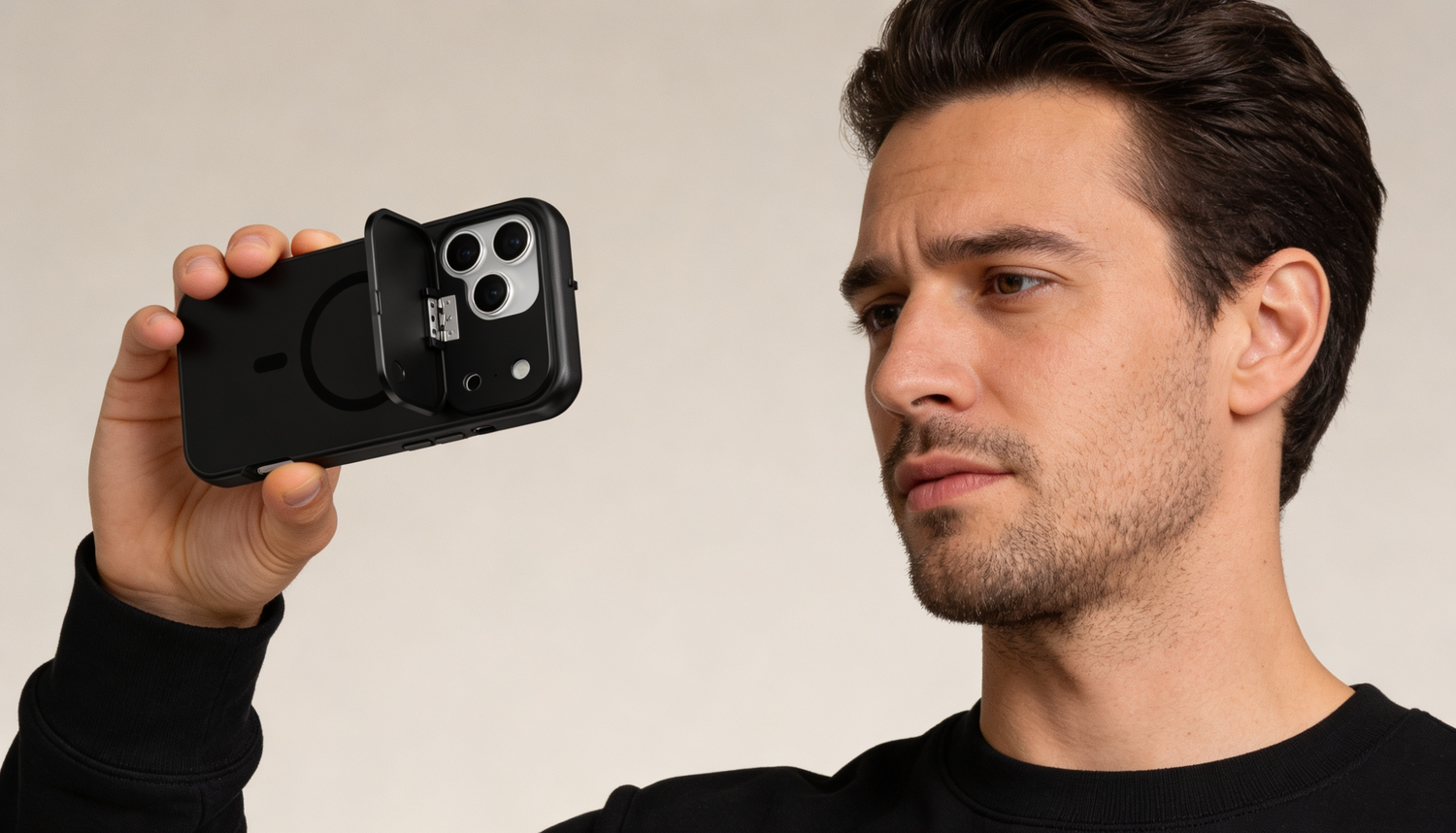
The premium solution is a privacy case with built-in sliding covers for both the front and rear cameras. Spy-Fy iPhone privacy cases use a sliding cover for the front camera (so Face ID still works when open) and a flip cover for the rear array. The flashlight remains usable when the rear cover is closed. The cases support iPhone 12 through the iPhone 17 series, including the iPhone 17 Pro, Pro Max, and Air, with MagSafe compatibility and drop protection.
For specific models, see the iPhone 17 Pro Max Privacy Case, the iPhone 17 Pro Privacy Case, or the iPhone 17 Air Privacy Case. The cover is closed by default and slides open in under a second when you actually want to take a photo or join a video call. No app, no account, no tracking. Just a piece of engineered plastic doing what software cannot guarantee.
How to re-enable the camera when you need it
If you used the Screen Time method, reverse it by going back to Settings > Screen Time > Content & Privacy Restrictions > Allowed Apps & Features and toggling Camera back on. You'll need your Screen Time passcode.
If you revoked per-app permissions, re-enable them individually as needed under Settings > Privacy & Security > Camera. Re-enable only the specific app you're about to use, and consider revoking again afterward.
If you're using a physical cover, slide it open. That's the entire workflow.
Layered defense is the right answer
The best practice for anyone serious about iPhone camera privacy is layered: revoke per-app permissions you don't need, lock down the Lock Screen camera shortcut, set a Screen Time passcode, and add a physical cover for the cases where software fails. Each layer covers a different threat. Permissions stop ordinary apps. Screen Time stops accidental access. The physical cover stops the threats you can't see.
For a complete privacy setup that includes a webcam cover for your laptop, a USB data blocker for travel, and an RFID card for your wallet, the Spy-Fy Privacy Kit bundles them together. For iPhone-specific protection, browse the full privacy case collection and pick the case that matches your model. The software steps in this guide are free; the hardware step is the one that gives you certainty.