To allow camera access on iPhone, open Settings > Privacy & Security > Camera, find the app you want to grant access to, and toggle the switch on. To revoke access, flip the same toggle off. For a system-wide block, use Settings > Screen Time > Content & Privacy Restrictions > Allowed Apps and turn off Camera entirely.
This guide covers both sides of the same question. Some readers landed here because an app refuses to scan a document or join a video call. Others want the opposite: to strip camera access from apps that should never have had it. Both groups, especially executives, journalists protecting sources, healthcare workers handling patient data, and lawyers concerned about attorney-client privilege, need to understand how iOS camera permissions actually work, where the gaps sit, and when software toggles are not enough.
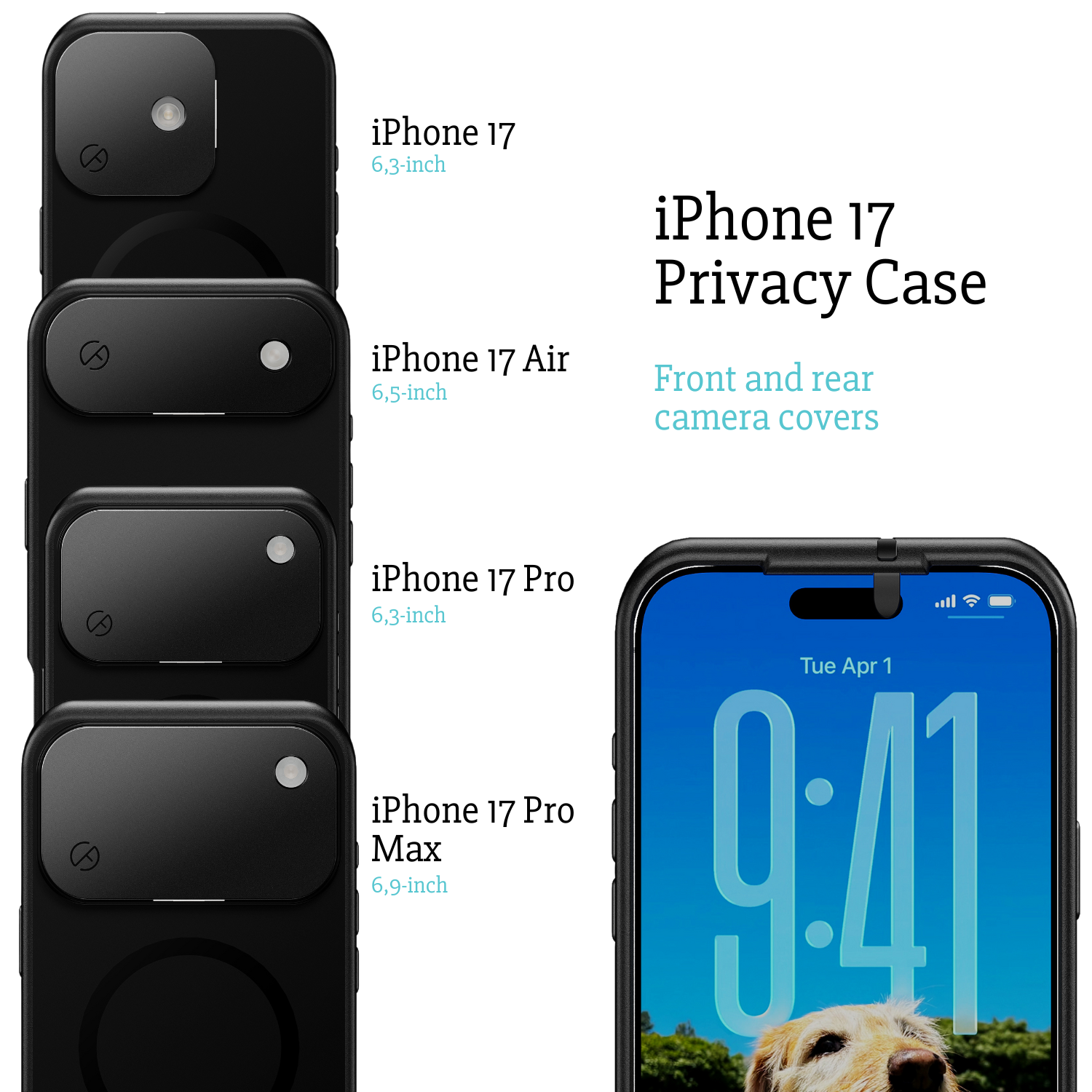
For broader protection, the Spy-Fy privacy case collection adds a physical layer that no software setting can match. We return to why that matters at the end.
How to allow camera access on iPhone (per app)
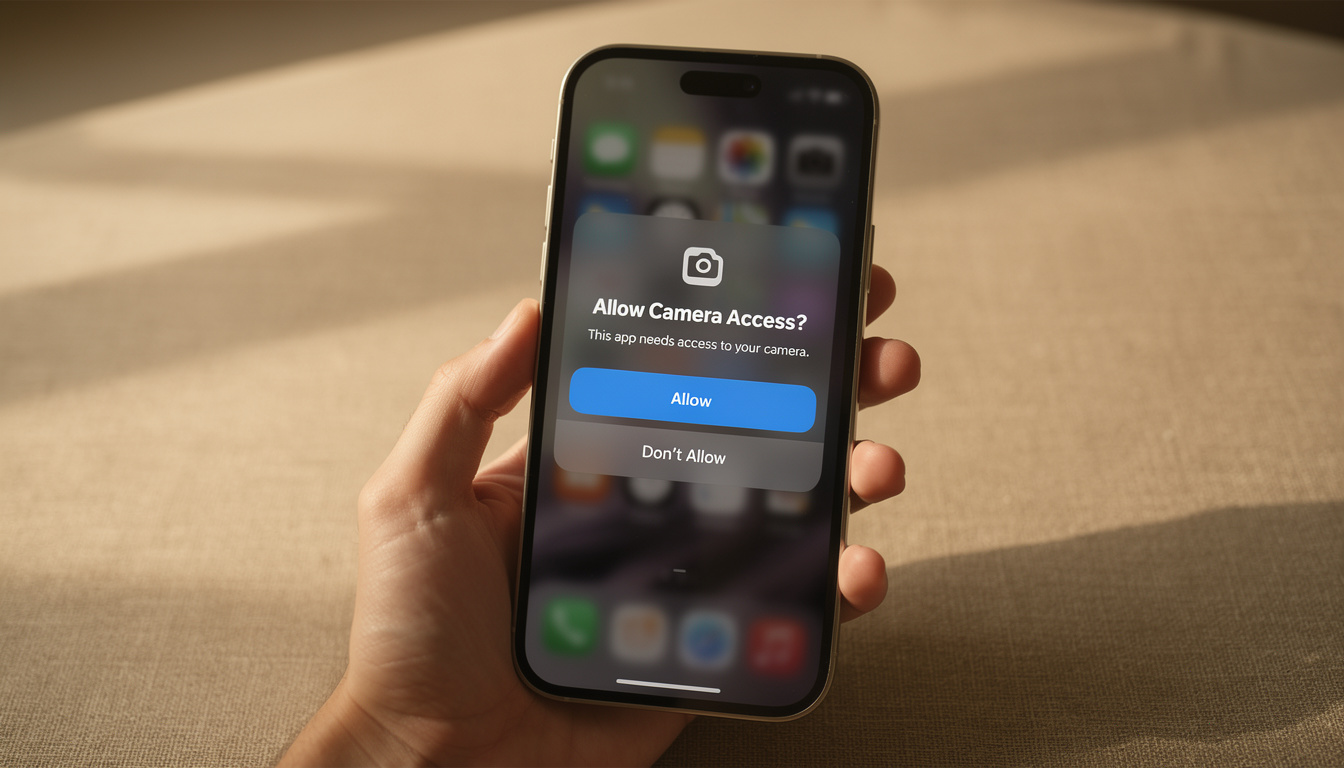
Apple separates camera permissions on a per-app basis. The first time an app tries to use the camera, iOS shows a prompt: Allow or Don't Allow. If you tapped Don't Allow and now need to change it, here is the path:
- Open the Settings app.
- Scroll down and tap Privacy & Security.
- Tap Camera.
- Find the app in the list and toggle the switch to green.
That is the full procedure for how to enable camera access on iPhone. The change takes effect immediately. No restart needed.
If the app is not in the list, it means the app has never requested camera permission. Open the app, trigger a feature that needs the camera (start a video call, scan a QR code, take a profile photo), and iOS will show the permission prompt. From that moment forward the app appears in the Camera list and you can manage it normally.
Enabling camera access for websites in Safari
Safari handles website camera permissions separately from app permissions. To allow a site such as a video-interview platform or web conferencing tool to use your camera:
- Open Settings > Apps > Safari.
- Scroll to Settings for Websites and tap Camera.
- Set the default to Ask or Allow, or manage individual sites that have already requested access.
For a one-off grant, Safari prompts you at the moment a website tries to activate the camera. You can also tap the page settings icon in the address bar and adjust the Camera permission for that specific site.
How to disable camera access on iPhone
Revoking permission is the same workflow in reverse. Open Settings > Privacy & Security > Camera and toggle off any app you do not want using the lens. This is the simplest way to manage how to disable camera in iPhone settings on a per-app basis.
A useful exercise: scroll through the full list and ask, for each app, whether you actually use a camera feature inside it. Many apps request access for a single function (a profile photo upload, a one-time QR scan) and then keep that permission forever. Revoke access for any app you would not notice losing the camera in.
How to turn off camera on iPhone system-wide
If you want the camera disabled across every app at once, use Screen Time:
- Open Settings > Screen Time.
- Tap Content & Privacy Restrictions and turn it on.
- Tap Allowed Apps (or Allowed Apps & Features on newer iOS versions).
- Toggle Camera off.
This removes the Camera app from the Home Screen and revokes camera access from every third-party app at the same time. It is the cleanest way to turn off camera functionality without uninstalling apps. To restore access, return to the same menu and toggle Camera back on. Organizations issuing devices to employees who handle classified information often deploy the equivalent restriction through MDM.
How to disable camera on lock screen iPhone
By default, iPhone shows a camera shortcut on the lock screen. Anyone holding your phone can swipe to open the camera and take photos without unlocking the device. They cannot see your existing photos, but they can capture new ones, which is enough to compromise a sensitive location, document, or whiteboard.
To disable the lock screen camera, you again use Screen Time:
- Go to Settings > Screen Time > Content & Privacy Restrictions > Allowed Apps.
- Toggle Camera off.
Turning off Camera here removes the lock screen shortcut along with the Camera app itself. There is no separate "lock screen camera only" toggle in iOS, so this is the supported workaround. For users who want to keep the Camera app accessible but block lock screen use, a strict Face ID and passcode policy combined with a Screen Time profile is the closest alternative.
Troubleshooting: camera access won't enable
If a toggle is grayed out or an app refuses to use the camera even after you have granted permission, work through these checks:
- Screen Time restriction active: Go to Settings > Screen Time > Content & Privacy Restrictions > Allowed Apps and confirm Camera is on. If Content & Privacy Restrictions is enabled but Camera is off, every per-app toggle is locked.
- MDM profile installed: Work or school devices often carry a Mobile Device Management profile that disables the camera. Check Settings > General > VPN & Device Management. If a profile is present, only the administrator can restore camera access.
- App needs a restart: Some apps cache permissions at launch. Force-close and reopen the app after granting access.
- iOS update pending: A handful of iOS releases have introduced bugs where third-party apps disappear from the Camera permissions list. Install the latest iOS update from Settings > General > Software Update.
Audit which apps are actually using your camera
Granting permission is one thing. Knowing when an app uses that permission is another. iOS gives you two indicators worth watching.
The first is the green dot in the top-right corner of the screen. Whenever the camera is active, iOS shows a green indicator regardless of which app triggered it. If you see the green dot when you did not expect it, swipe down from the top-right to open Control Center, and the name of the app currently using the camera appears at the top.
The second is the App Privacy Report. Enable it under Settings > Privacy & Security > App Privacy Report. After it runs for a few days, the report shows every time an app accessed the camera, microphone, location, photos, and contacts, along with the network domains those apps contacted. If a note-taking app accessed your camera at 2 AM, the report will show it.
For a deeper look at the signs of unauthorized access, our guide on how to tell if someone is hacking your iPhone camera walks through the specific behaviors and indicators to watch for.
When software settings aren't enough
iOS permissions handle the everyday threat model well. A legitimate app you do not want using the camera gets toggled off, and that is the end of it. There are scenarios where software-level controls have limits:
- Zero-day exploits. Vulnerabilities in iOS have, in documented cases, allowed code to bypass permission prompts. Pegasus-class spyware is the most-cited example, and Citizen Lab has published multiple confirmed infections affecting journalists and dissidents.
- Stalkerware installed with physical access. Someone with your passcode for a few minutes can install profiles or sideload tools that operate beneath the standard permission layer.
- Compromised apps you trust. A legitimate app hijacked through a supply chain attack inherits whatever permissions you already granted.
- Shoulder surfing and tabletop exposure. Even with software locked down, the physical lens still points outward, capturing whatever sits in front of it whenever the phone lies face-up on a table.
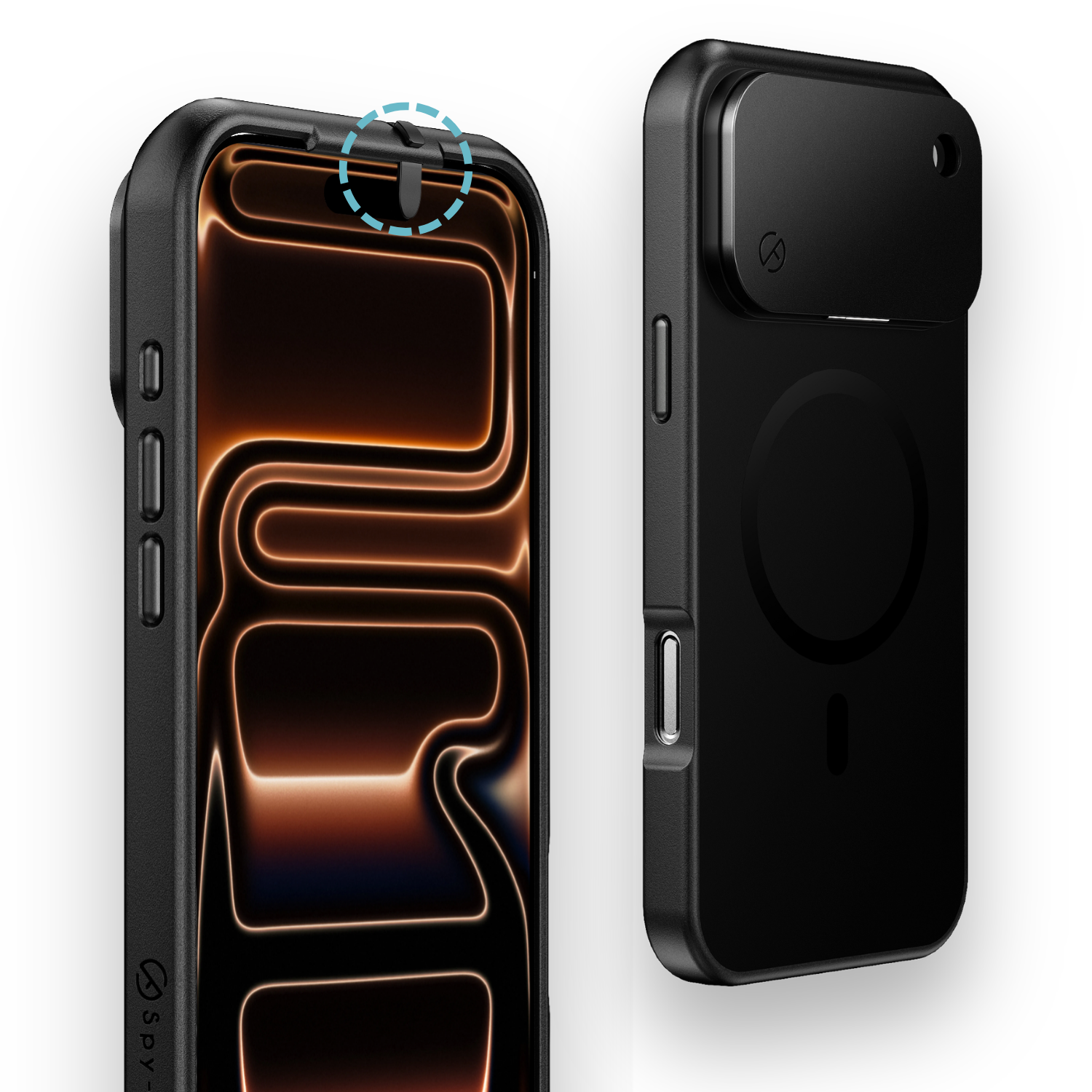
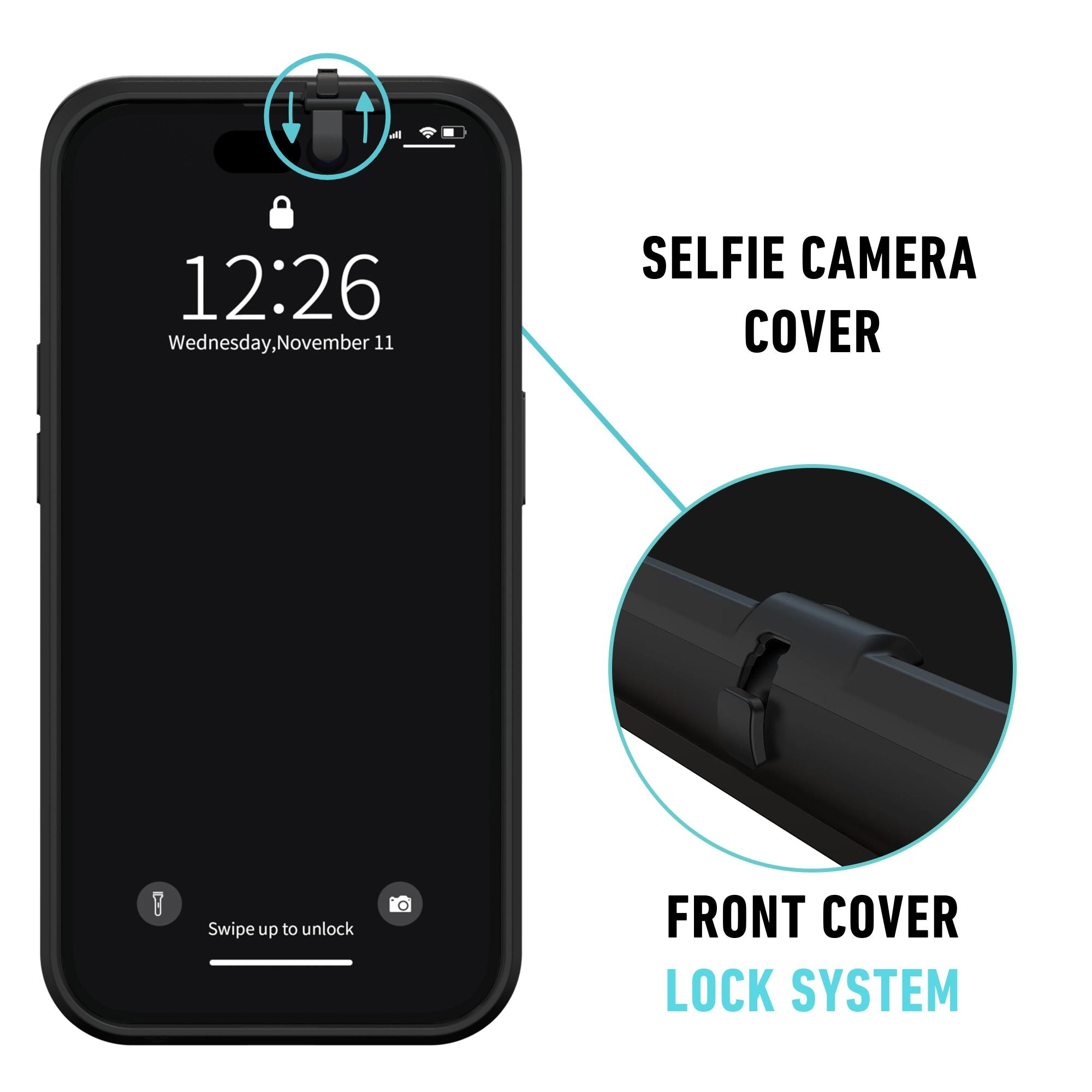
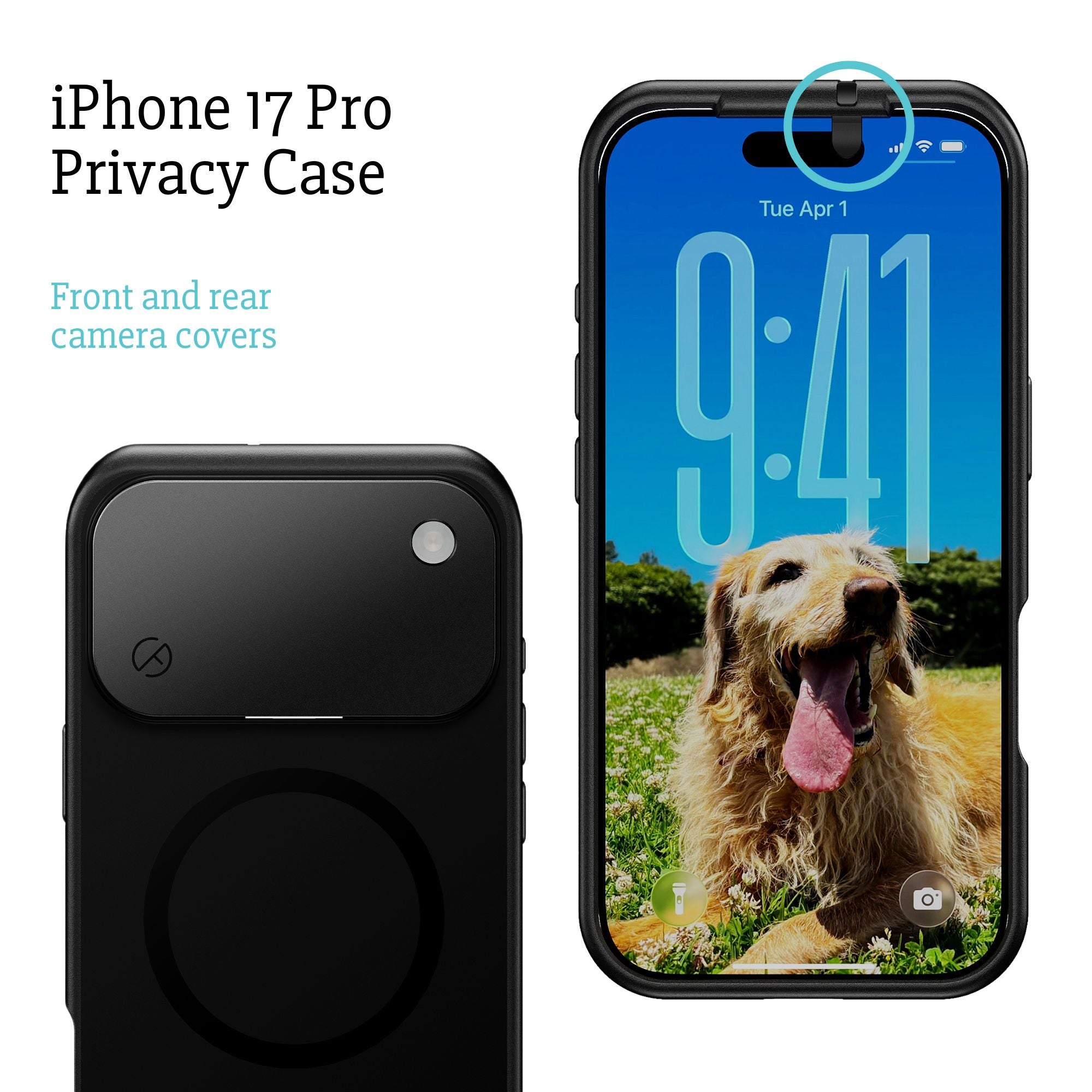
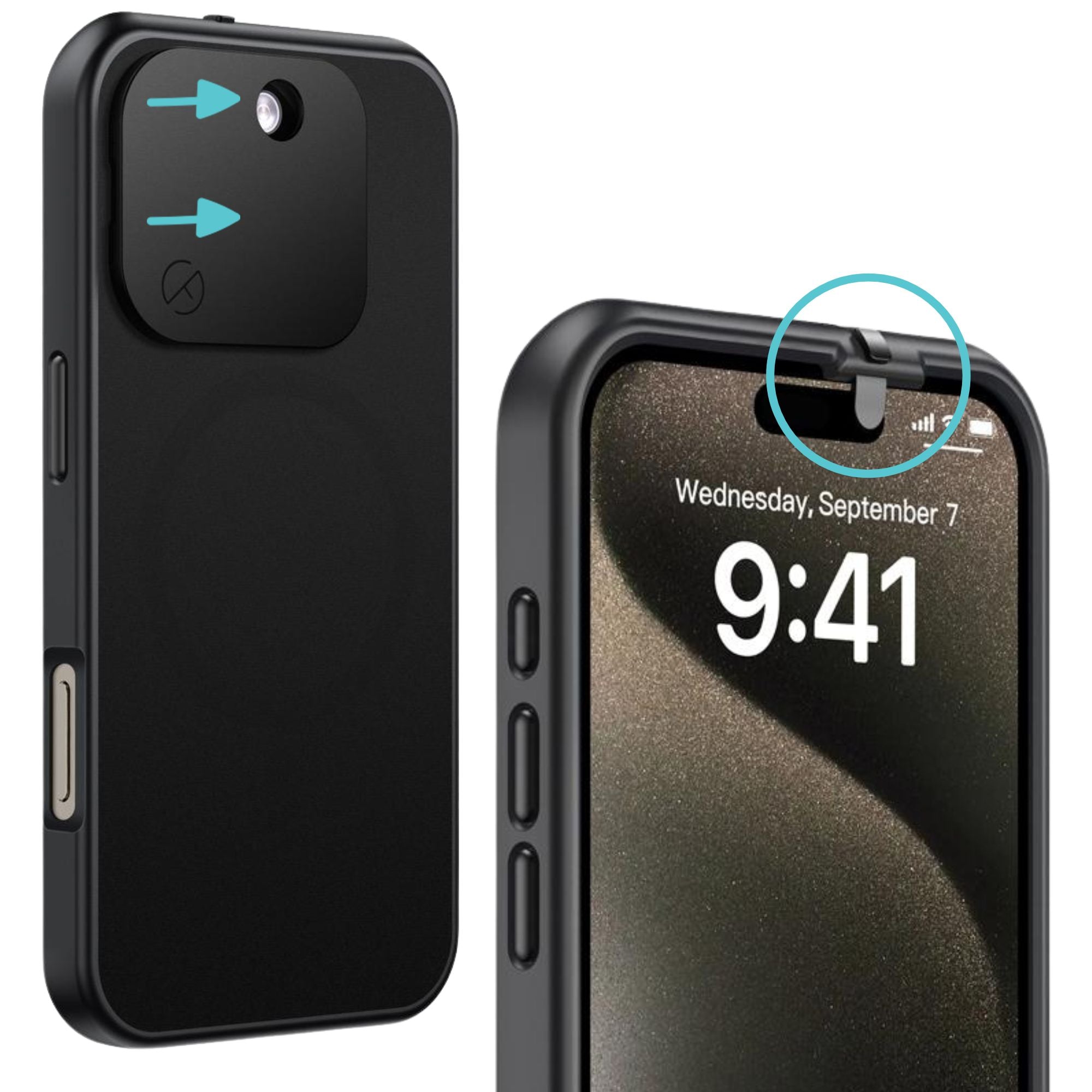
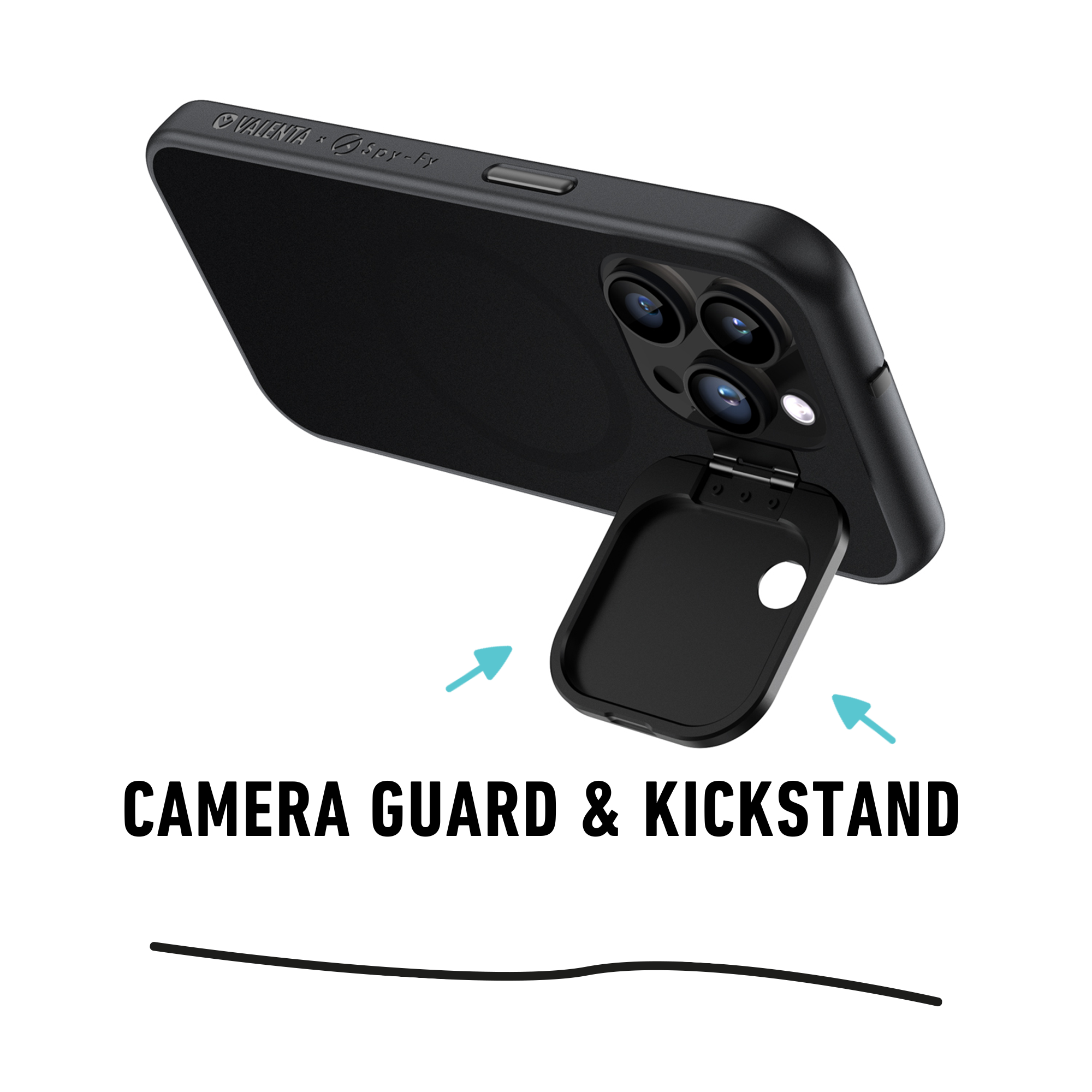
For executives, journalists protecting sources, and anyone whose threat model includes targeted surveillance, a physical camera cover is the only control that cannot be bypassed by software. A piece of opaque material in front of the lens defeats every category above, because it does not matter what the software is doing if no light reaches the sensor. The Spy-Fy iPhone 17 privacy case uses a sliding cover for the front camera (Face ID still works when the cover is open) and a flip cover for the rear lenses. Both covers move only when you decide they do.
Recommended camera permission hygiene
A practical baseline for privacy-aware iPhone users:
- Review Settings > Privacy & Security > Camera every few months and revoke access from apps you no longer use.
- Enable App Privacy Report and check it after any new app install.
- Disable the lock screen camera via Screen Time if your phone sits on desks or in public spaces.
- Treat camera permission as something an app earns once and keeps reviewing, not a one-time grant.
- For high-sensitivity use, add a physical cover on top of all of the above.
The takeaway
Managing camera access on iPhone is a two-direction job. Allow access for the small number of apps that genuinely need it, deny or revoke it for everything else, and disable the lock screen camera if your device is ever out of your sight. iOS gives you the tools to do all of that in under five minutes.
For situations where software controls are not the last line of defense, the full Spy-Fy privacy case collection adds a physical layer that no malware, exploit, or social engineering attempt can disable.